Skip to Content
800-533-8762
  • Careers
  • Newsroom
  • Health Care Professionals
  • About Us
  • Contact Us
UPMC
  • Find a Doctor
  • Conditions
  • Services
    • Frequently Searched Services
    • Frequently Searched Services
      Allergy & Immunology Behavioral & Mental Health Cancer Ear, Nose & Throat Endocrinology Gastroenterology Heart & Vascular Imaging Neurosciences Orthopaedics
      Physical Rehabilitation Plastic & Reconstructive Surgery Primary Care Senior Services Sports Medicine Telemedicine Transplant Surgery Walk-In Care Weight Management Women’s Health
      See all Services
    • Services by Region
    • Find a UPMC health care facility close to you quickly by browsing by region.
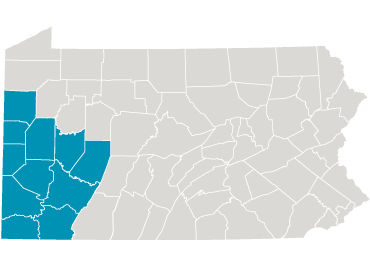
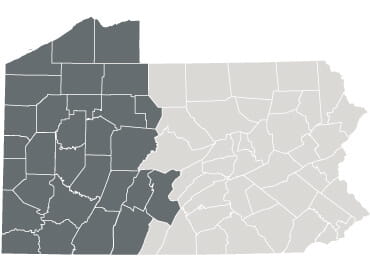
      UPMC in Western Pa. Western Pa. and New York
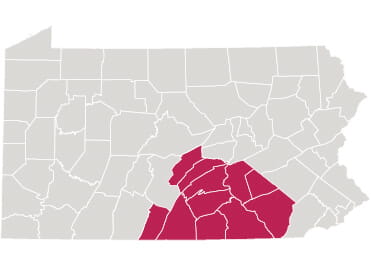
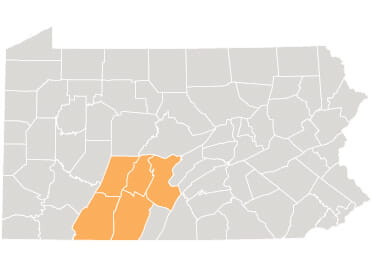
      Highlighted Regional Map of UPMC in Central Pa. Central Pa.
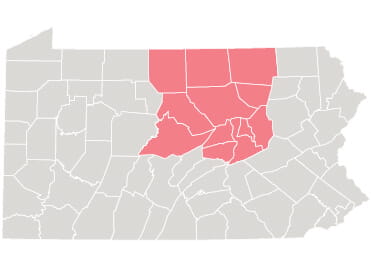
      UPMC in North Central Pa. North Central Pa.
      UPMC in Western Md. Maryland & West Virginia
    • See All Services
  • Locations
    • Locations by Type
    • Locations by Type
      UPMC hospitals
      Hospitals
      Physical Therapy
      Physical Therapy
      Urgent care
      Walk-In Care
      UPMC Outpatient Centers
      Outpatient Centers
      UPMC Imaging Services
      Imaging
      Community Health Centers
      Community Health Centers
      See All Locations
    • Locations by Region
    • Locations by Region
      UPMC in Southwest Pa. Southwest Pa.
      UPMC in North Central Pa. North Central Pa.
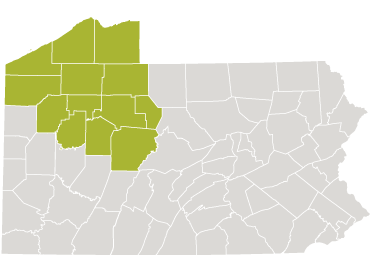
      UPMC in Northwest Pa and Ny. Northwest Pa. & Western N.Y.
      UPMC in West Central Pa. West Central Pa.
      Highlighted Regional Map of UPMC in Central Pa. Central Pa.
      UPMC in Western Md. Maryland & West Virginia
    • See All Locations
  • Patients & Visitors
    • Patient & Visitor Resources
    • Patient & Visitor Resources
      Patients and Visitors Resources Pay a Bill Classes & Events Health Library International Traveling Patients Medical Records
      Patient Information Patient Portals Privacy Information Shared Decision Making Visitor Information
      Man uses mobile phone
      Pay a Bill
      Nurse reviews medical chart
      Request Medical Records
  • Patient Portals
  • Find Covid-19 updates
  • Schedule an appointment
  • Request medical records
  • Pay a bill
  • Learn about financial assistance
  • Find classes & events
  • Send a patient an eCard
  • Make a donation
  • Volunteer
  • Read HealthBeat blog
  • Explore UPMC Careers
Skip to Content
UPMC
  • Find a Doctor
    • Doctor Search
  • Conditions
    • Search Conditions We Treat
  • Services
    • Frequently Searched Services
      • Heart and Vascular Services
      • Neurosciences Services
      • Orthopaedics Services
      • Primary Care Services
      • Spine Care Services
      • Sports Medicine Services
      • Transplant Services
      • Women's Health Services
      • See all Services
    • Services by Region
      • Find Care in Western Pa
      • Find Care in Central Pa
      • Find Care in North Central Pa
      • Find Care in Western Maryland
    • See All Services
  • Locations
    • Locations by Type
      • Hospitals
      • Walk-In Care
      • Imaging
      • Physical Therapy
      • Outpatient
      • Community Health Centers
      • See All Locations
    • Locations by Region
      • Central Pa.
      • Maryland and West Virginia
      • North Central Pa.
      • Northwest Pa. & Western N.Y.
      • Southwest Pa.
      • West Central Pa.
    • See All Locations
  • Patients & Visitors
    • Patient & Visitor Resources
      • Pay a Bill
      • Classes & Events
      • Health Library
      • International Traveling Patients
      • Medical Records
      • Patient Information
      • Patient Portals
      • Privacy Information
      • Shared Decision Making
      • Visitor Information
      • View All Patients and Visitors Resources
  • I Want To
    • Find Covid-19 updates
    • Schedule an appointment
    • Request medical records
    • Pay a bill
    • Learn about financial assistance
    • Find classes & events
    • Send a patient an eCard
    • Make a donation
    • Volunteer
    • Read HealthBeat blog
    • Explore UPMC Careers
  • Patient Portals
  • Careers
  • Contact Us
  • Newsroom
  • UPMC >
  • MyUPMC >
  • MyUPMC FAQs

MyUPMC Frequently Asked Questions

Looking for help with MyUPMC? Find answers to common questions about appointments, billing, messages, test results, account settings, and more.

About MyUPMC

About MyUPMC


MyUPMC is a free service that offers personalized and secure access to portions of your medical records from home. It helps you securely manage and receive information about your health. With MyUPMC, you can:

  • Schedule medical appointments*
  • View your health summary
  • View test results
  • View visit notes
  • Request prescription renewals/refills from UPMC pharmacies
  • Access trusted health information resources
  • Communicate electronically and securely with your medical care team
  • Receive personalized reminders for recommended appointments, screenings, and tests

*If your UPMC doctor participates

The MyUPMC patient portal is NOT to be used/depended on for emergency situations.

You need a computer or mobile device connected to the Internet and an up-to-date browser (such as Edge, Chrome, Firefox, or Safari). You can also use the MyUPMC mobile app on a mobile device. Download via the App Store or Google Play Store.

We take great care to ensure your health information is kept private and secure. Access to information is controlled through secure activation codes, personal usernames, and passwords. Each person controls their password, and the account must be accessed using that password. Unlike conventional email, all MyUPMC messaging is done while you are securely logged in to our website or mobile app.

UPMC also uses two-step verification to ensure that your account stays secure even if someone else has your username or password. With two-step verification, you must enter a code that is sent to you by email or text message to log in to MyUPMC, in addition to using your username and password.

MyUPMC is owned and operated by UPMC and is fully compliant with federal and state privacy laws. Your name and email address will be treated with the same care and privacy we give to your health records and will never be sold or leased by MyUPMC. Please review the MyUPMC Privacy Policy here.

Enrollment Questions

Enrollment Questions


You are eligible to use MyUPMC if you are 18 years of age or older or are the parent or legal guardian of a minor patient. In limited circumstances, an adolescent (aged 13-17) may also be eligible to use MyUPMC. Certain restrictions to information may apply.

You can sign up using our secure self-sign-up process on myupmc.com prior to visiting your UPMC medical office. If you do self-sign up, you will be required to fill out a form with your personal demographic information.

You also have the option to sign up at your UPMC medical office. The staff member will provide you with an activation code during your visit. This code will enable you to finish the sign up process by creating your own username and password on myupmc.com.

No. Each of you should establish your own MyUPMC accounts; however, you can grant each other access via proxy.

Teen patients can sign up for their own MyUPMC account by speaking with both their regular UPMC doctor and a parent/legal guardian at the time of their visit. For more information, please visit the MyUPMC proxy access webpage.

For your security, your activation code expires after a set period of time and is no longer valid after the first time you use it. If you still have problems, call MyUPMC Portal Support at 1-833-298-7320.

Logging in to MyUPMC

Logging in to MyUPMC


Click the "Forgot login information” link from the MyUPMC homepage, and follow the prompts to recover your username and password.

To update information such as your email or physical address, log into MyUPMC, and select Personal Information, where you can update and verify contact information and other personal details.

To change your password or update communication preferences, select Account Settings from the main menu.

Try checking the spam or junk folders in your email. If the email with your code is not there, try clicking Resend Code. If you still didn’t receive the email, it could be that your account has a different email address on file. If you have multiple email accounts, check one of the others to see if the verification code was sent there instead. If none of your accounts received the email, it could be that we don’t have an email address on file. If this is the case, call MyUPMC Portal Support at 1-833-298-7320.

Call MyUPMC Portal Support at 1-833-298-7320.

Your Medical Record

Your Medical Record


You can request a copy of your medical record through the Sharing Hub in MyUPMC or send a request from the Message Center by selecting “Request a Copy of Your Medical Record”. You will fill out the form and click submit. You will receive a notification when your records are available to you within the portal.

You may also request a copy in person from our Health Information departments located at each UPMC Hospital. For more information, visit Requests for Medical Records.

Your health information is reviewed and updated in your electronic medical record during each visit. At that time, you can request an update in a conversation with your provider.

If there is information that you are not able to update, please contact your UPMC doctor's office or submit a Chart Correction Request via MyUPMC so that your information can be reviewed and updated. MyUPMC information comes directly from your electronic health record at your doctor's office. You can contact that office via the secure message option within MyUPMC or you can call or visit the office to update the information.

Yes, if your health management app includes a feature to download records from your provider, you can authorize it to access your UPMC medical chart, including information such as allergies, medications, health issues, procedures, visit information, and test results.

If you later decide you want to remove an app’s access to your records, you can do so using the deauthorization feature in the patient portal associated with the records. In MyUPMC, navigate to the Manage My Linked Apps and Devices activity.

To authorize a health management app to access your UPMC records:

  1. Open the app and launch the feature to access your health records from a provider. For help doing so, see the app’s own documentation or contact its Support.
  2. The app will prompt you to search for your provider. Search for UPMC.
  3. You will find several options:
    1. To get records from a stay at a UPMC hospital, select “UPMC Inpatient Records.”
    2. To get records from an office visit with a UPMC provider, select “UPMC Outpatient Records.”
    3. To get records from another UPMC facility, select that facility by name.
      Note: If you want records from more than one option, you will need to authorize each one separately.
  4. You will be prompted to enter the username and password for the patient portal associated with the source you selected:
    • If you are requesting UPMC inpatient or outpatient records, you will be prompted for your MyUPMC username and password. If you don’t yet have a MyUPMC account, select the Create Account option. After you create the account, you can complete the authorization of the app.
  5. You will then be guided through the authorization process. If you have proxy permissions to another patient’s record, you will be able to authorize the app to access that patient’s data. You will need to authorize one patient record set at a time.
  6. Once authorized, the app may pull the selected patient’s records at a regular interval determined by the app so as to keep your records up to date. If the app doesn’t implement this update feature, you will need to request updates manually, authorizing the app’s access each time.
Using MyUPMC

Using MyUPMC


Patients can confidentially and securely communicate with their medical care team through MyUPMC by sending secure messages. These messages automatically connect to your electronic medical record so that your doctor can easily find all the information they need to respond to your message efficiently.

Please allow two to three business days for a response. Depending on the nature of the message or request, you may be asked to schedule an office visit.

Most lab and imaging test results are automatically released to your MyUPMC account on the same day they are finalized. Please note that you may see your results before your doctor does. If viewing a test result before talking to your doctor may cause confusion or anxiety, you may consider waiting to hear from your doctor prior to reviewing the results.

A small number of results are not automatically released, including:

  • High Risk Genetic Results
  • Obstetric Pathology Results
  • HIV Screening

If your test results are not displayed when you expect them, let your doctor's office know by sending them a message in MyUPMC. In some cases, your test results may appear as scanned documents.

If you’d prefer to not receive notifications of new results during certain times such as evening, nighttime, and weekend hours, you can visit your device’s “Do Not Disturb” settings and update your preferences. For help updating your preferences, please visit the following links for iOS and Android devices.

You may see health maintenance tasks listed here (pap smear, mammograms, colonoscopy, Care Companion tasks, etc.) based on your age, gender, and national health prevention guidelines. Please discuss any health maintenance items with your UPMC doctor at your next office visit.

Your medication list, current health issues, allergies, and immunizations will be updated after your next visit with your UPMC doctor. Your UPMC doctor needs to verify and update your information while you are in the office.

Your doctor will add him or herself to your care team at your next appointment. If they do not, please contact your UPMC doctor's office.

Yes, you can view and print your immunization record from MyUPMC’s Health Summary. You can download a PDF file that you can email to a school or other doctor's office. Learn more about requesting copies of your medical record. 

If you receive care from another healthcare organization that uses a MyChart patient portal, you might be able to view information such as medications, test results, and more from that organization right in MyUPMC. To view, you must link your account by selecting Link My Accounts from the main menu and searching for the organizations where you have MyChart portal accounts.

Scheduling & Managing Appointments

Scheduling & Managing Appointments


You can schedule appointments via MyUPMC if your provider participates in online scheduling and there are available time slots. If there are no available time slots, call Scheduling Services at 1-800-533-8762 to book an appointment.

Yes, you can view past and upcoming appointments by selecting Visits in MyUPMC.

Yes, you are able to cancel or reschedule most appointments in MyUPMC. To do so, go to Visits and select the appointment you’d like to modify. If your appointment is eligible to be rescheduled or cancelled, then select the corresponding button located under the appointment’s details.

Please note: You can only reschedule appointments with the same provider for the same visit type and duration as the original appointment.

MyUPMC will notify you if an earlier appointment time becomes available for your upcoming appointment, if you previously indicated a preference to be added to the waitlist. Within the notification, you can either tap the push notification sent to your mobile device, click the link located within the email notification and/or text you received, or log in to MyUPMC and select the “View Options Now” link in your dashboard.

Please note: Appointments are available on a first come, first serve basis. You may choose to accept the new option or keep your original time.

eCheck-In allows patients to remotely prepare for an upcoming visit by completing required visit tasks such as reviewing and electronically signing documents, uploading insurance information, completing questionnaires, and making a copay. eCheck-In is available to all UPMC patients, even those without a MyUPMC account.

Patients will receive a notification to complete eCheck-In seven days prior to a scheduled appointment. One day prior, if the patient still has not completed eCheck-in, they will receive an additional reminder. Reminders are sent via the patient’s preferred communication method: email, text, and/or automated phone call.

Paying a Bill

Paying a Bill


Follow the instructions on your statement to pay your UPMC bills. Bills for care received on or after October 3, 2026, are also available to view and pay in MyUPMC’s Billing section. For more information, refer to Paying Your UPMC Bills.

Patients who have a MyUPMC account can view cost estimates for their scheduled care by visiting Estimates in MyUPMC.

Patients can apply for financial assistance in the Financial Assistance section of MyUPMC. You can create a new application or view information about an existing request. Learn more about applying for financial assistance at UPMC.

Video Visits

Video Visits


A video visit allows you to complete an office visit virtually – without having to go to the doctor’s office. All you need is an internet connection, Apple or Android smartphone or tablet (or a computer with webcam), and a MyUPMC account to participate. If you use a mobile device, you will need to download the MyUPMC or MyChart app.

You may be seen for acute and follow-up problems.

Note: We do not treat emergent or life-threatening situations such as chest pain, lacerations, head injury, broken bones, coughing blood or loss of consciousness. Pregnant women with back pain or abdominal pain should also not use this service. We are unable to prescribe medications for certain controlled substances via video visit. We recommend you visit urgent care or the emergency room for the most serious conditions.

Video visits offer you the opportunity to speak with a provider in real-time using a webcam or mobile device, while E-Visits involve completing an online questionnaire to receive a treatment plan. Both services are for non-emergent issues.

Log into MyUPMC and go to Schedule an Appointment. Select the Video Visit option, if available at your doctor’s office. You may also call Scheduling Services at 1-800-533-8762.

Yes. Mobile video visits require a connection to either Wi-Fi or a cellular network. You must have an active MyUPMC account to participate in a video visit, and you will need to download the MyUPMC or MyChart app on your mobile device before your appointment. When you first use the MyUPMC or MyChart app for a video visit, your device will ask if you want to allow the app to access the camera and the microphone – you must tap Yes or Allow when prompted.

Yes, you will need a camera on your smartphone, tablet, or computer to be able to see your provider during your video visit. If you do not have a camera, you may alternatively want to consider completing an E-Visit, a quick and easy online questionnaire for a treatment plan.

Yes, you will speak to your provider when conducting a video visit.

Possibly, depending on the provider’s recommendation based on your symptoms.

If a technical problem prevents the video visit from being complete or if your doctor determines that your problem cannot be addressed through a video visit, the fee will be reimbursed.

Proxy Access

Proxy Access


This type of access is called "proxy access." A parent, significant other, guardian or caregiver must first log into their own personal MyUPMC account and then select the appropriate patient from the options in the upper right hand corner of the screen.

Access to a minor's account: To access a minor's medical record, a parent or guardian can request access using the Proxy Request Form in MyUPMC. Alternately, they can accompany the minor to their doctor's office and ask for proxy access there.

Access to an adult account: An adult with their own MyUPMC account, can "grant" access to another adult by logging into MyUPMC, selecting Sharing Hub from the main menu, then Manage Family and Friends Access. Fill out the form and select the type of access you would like to grant.

Learn more about proxy access in MyUPMC.

To comply with certain laws regarding privacy rights of adolescents, MyUPMC limits the features that a proxy may access for pediatric patients ages 13 through 17. If your unique situation requires you to maintain full access to their records, you can talk to your child's care team about your needs at an upcoming appointment or contact your provider’s office.

Proxy access to children is automatically discontinued when the child turns 18. When your child turns 18, they can get their own account, or you may complete an adult proxy request form to obtain adult proxy access. Adult proxy access allows for an authorized proxy to access the account of another patient over 18, such as an elderly parent.

Learn more about proxy access in MyUPMC.
In the event that a loved one passes away, MyUPMC proxy access to their medical information is automatically discontinued.

You can ask a question regarding another family member only if you have proxy access and are logged into your account and viewing that patient’s record.

UPMC
200 Lothrop Street Pittsburgh, PA 15213

412-647-8762 800-533-8762

Patients And Visitors
  • Find a Doctor
  • Locations
  • Pay a Bill
  • Patient & Visitor Resources
  • Disabilities Resource Center
  • Services
  • Medical Records
  • No Surprises Act
  • Price Transparency
  • Financial Assistance
  • Classes & Events
  • Health Library
Health Care Professionals
  • Physician Information
  • Resources
  • Education & Training
  • Departments
  • Credentialing
Newsroom
  • Newsroom Home
  • Inside Life Changing Medicine Blog
  • News Releases
About
  • Why UPMC
  • Facts & Stats
  • Supply Chain Management
  • Community Commitment
  • Financials
  • Supporting UPMC
  • HealthBeat Blog
  • UPMC Apps
  • UPMC Enterprises
  • UPMC Health Plan
  • UPMC International
  • Nondiscrimination Policy
Life changing is...
Follow UPMC
  • Contact Us
  • Website/Email Terms of Use
  • Medical Advice Disclaimer
  • Privacy Information
  • Active Privacy Alerts
  • Sitemap
© 2026 UPMC I Affiliated with the University of Pittsburgh Schools of the Health Sciences Supplemental content provided by WebMD Ignite. To learn more, visit webmdignite.com.
Find Care
Providers
Video Visit
Portal Login

Helpful Prompts

  • cancel: Stops your conversation
  • help: Shows what this bot can do
  • terms: Shows terms of use and privacy statement
  • feedback: Give us feedback
Continue
UPMC
Restart Chat
Chat Help